A locked Windows Server Administrator account can disrupt critical workflows, leaving IT teams unable to perform essential tasks such as system maintenance, troubleshooting, or responding to urgent issues. Lockouts often occur due to multiple failed login attempts, strict account lockout policies, or security mechanisms designed to protect against unauthorized access. While these measures are crucial for safeguarding systems, they can inadvertently hinder productivity when legitimate access is blocked. Addressing such scenarios quickly is vital to minimize downtime, restore administrative control, and ensure smooth server operations without compromising security.
Locked User Error Example
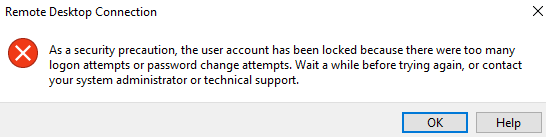
An example of a locked administrator error can be seen below when attempting to login via Remote Desktop (RDP) to your Windows server.
Unlocking a Locked User
Review the steps below to unlock a locked user whether it is an administrator account or a non-administrator one.
- Navigate to the IPMI as per the following article to avoid the user lock and to able to take actions on the server.
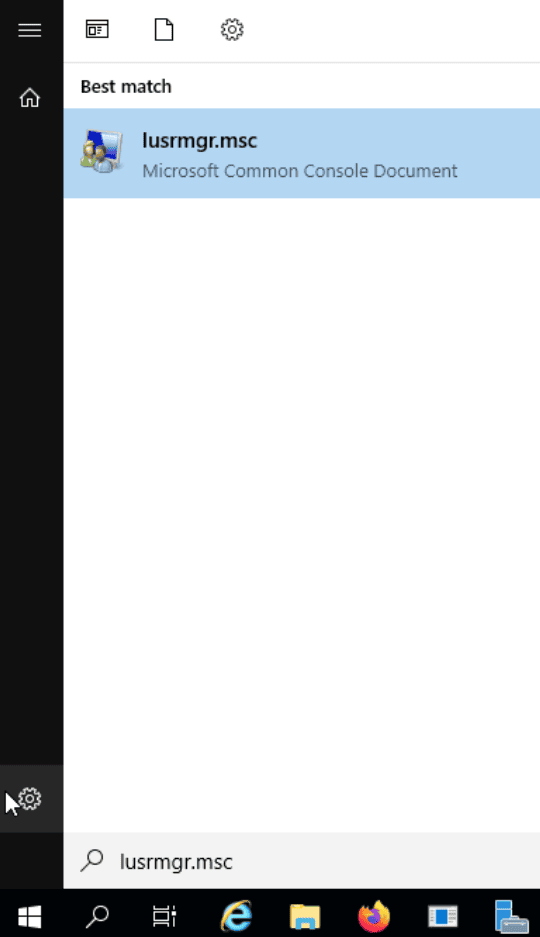
- Login to your Windows system via an Administrator account and search for “lusrmgr.msc” in the search bar.
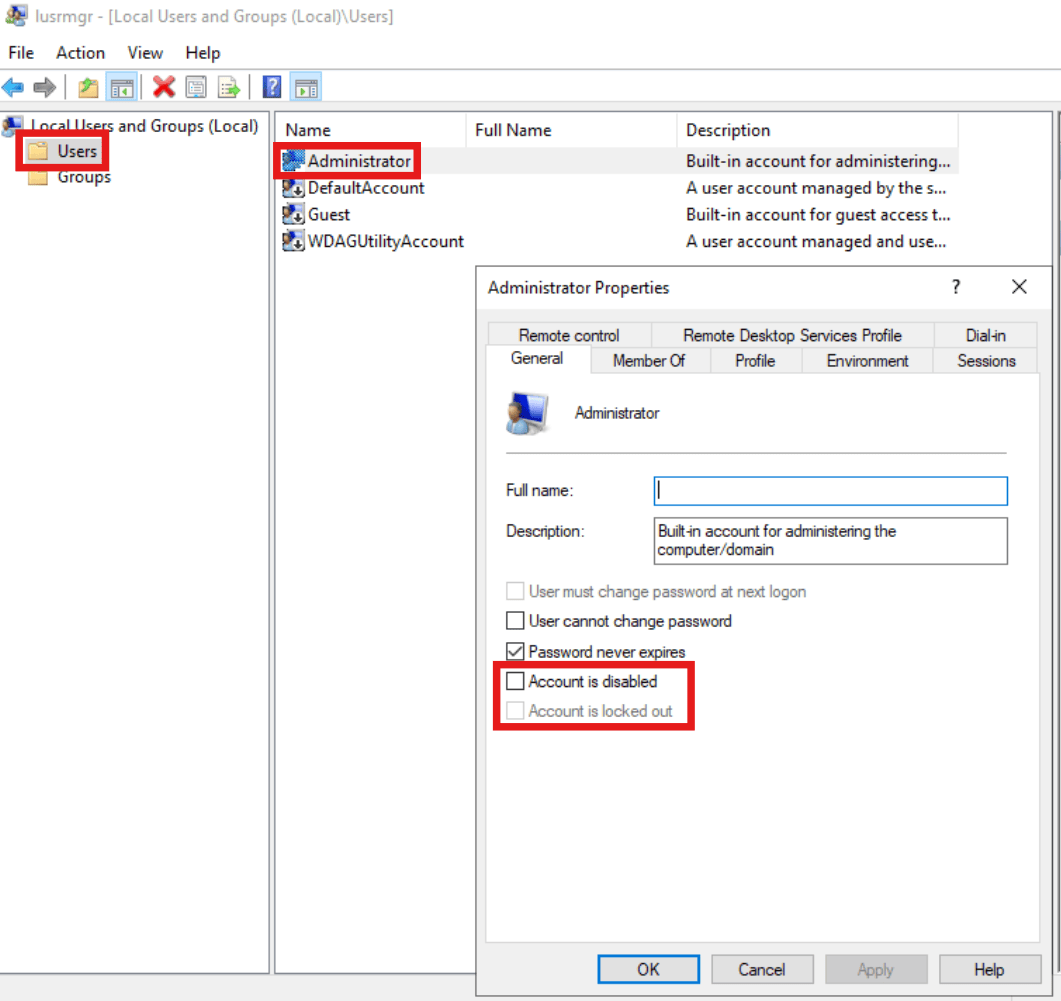
Local Users and Groups Manager - Navigate to “Users” and double click on the user that needs to get unlocked.
- Ensure to uncheck the “Account is Disabled” and “Account is Locked Out” boxes and press “OK”.
Unlocking a Locked Account - These changes will unlock the user and allow you to properly login via RDP.