Managing disk space is a critical aspect of Linux system administration. When storage utilization reaches high thresholds, system performance can degrade, services may fail to start, and critical logs may stop recording. Identifying the specific files and directories consuming the most space is the first step in maintaining a healthy environment.
Linux offers a variety of native command-line utilities designed to analyze file systems. By using tools such as du, find, and ncdu, administrators can quickly isolate large data clusters, hidden log files, and obsolete backups. This guide outlines the standard procedures for locating high-capacity files and directories to ensure efficient storage management.
Identify Top Directories using du
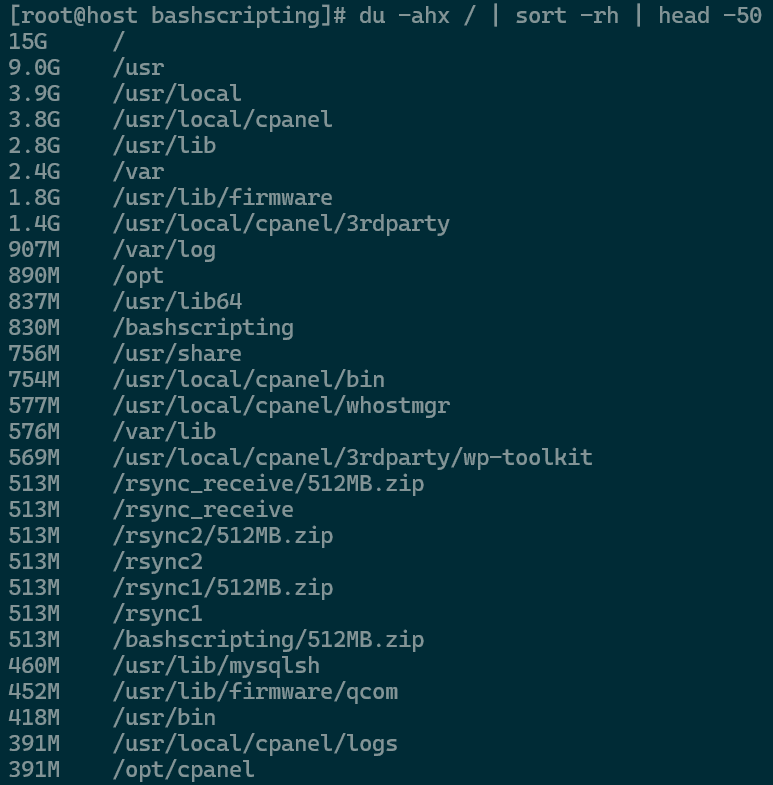
The du (Disk Usage) command is the standard way to check directory sizes. To find the largest folders in your current path without getting bogged down in sub-folders, use the following command to scan your entire root (Using “/” as shown below).
du -ahx / | sort -rh | head -50
du: Estimates disk usage.-a: Includes individual files, not just directories.-h: Formats sizes in human-readable units (KB, MB, GB).-x: Stays on the current filesystem (skips external mounts/network drives).-r: Reverses the order (largest values first).-h: Enables human-numeric sort, correctly comparing “2G” as larger than “50M.”head -50: Trims the output to show only the top 50 results, hiding the thousands of small files.
Find Specific Large Files using find
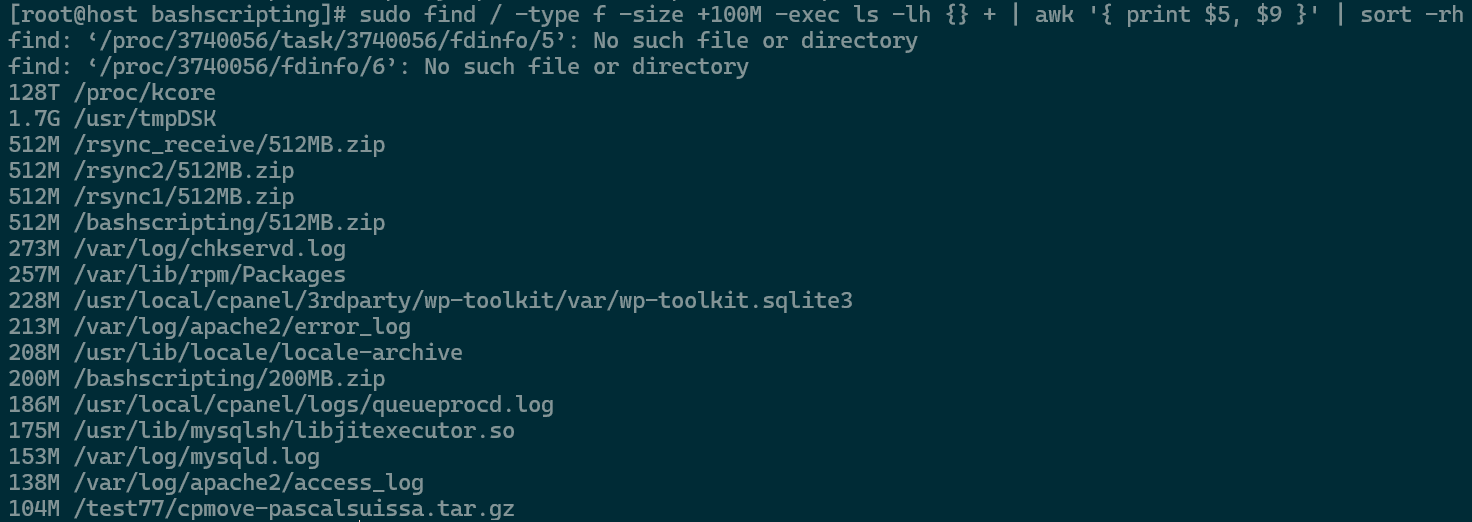
If you want to skip the folders and find individual files over a certain size (For examples, files larger than 100MB), the find command is the most effective tool:
sudo find / -type f -size +100M -exec ls -lh {} + | awk '{ print $5, $9 }' | sort -rh
-type f: Looks for files only.-size +100M: Filters for files larger than 100 Megabytes.awk: Formats the output to show size and file path clearly.
Use ncdu for an Interactive View
For a more navigational experience within the terminal, ncdu (NCurses Disk Usage) provides a fast, interactive interface to browse the file system by size.
- Install ncdu package via
sudo apt install ncdu(on Debian/Ubuntu) orsudo yum install ncdu(on RHEL/Fedora).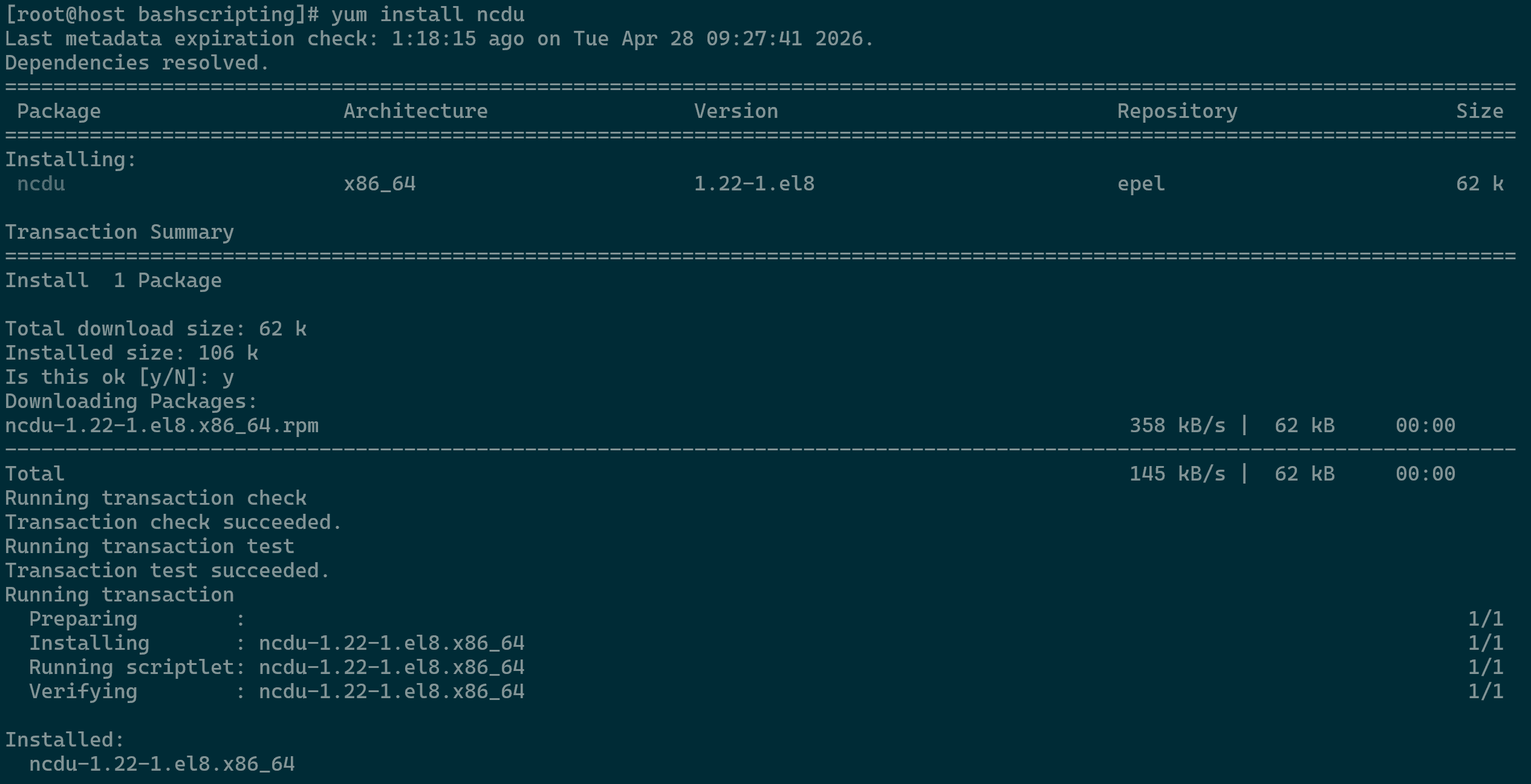
Installing ncdu - Run the command
ncdu / - Use the arrow keys to enter folders and navigate your directories.
- Pressing Shift+? will display the ncdu help menu to help you understand what each key does. More information can be found in the manual.
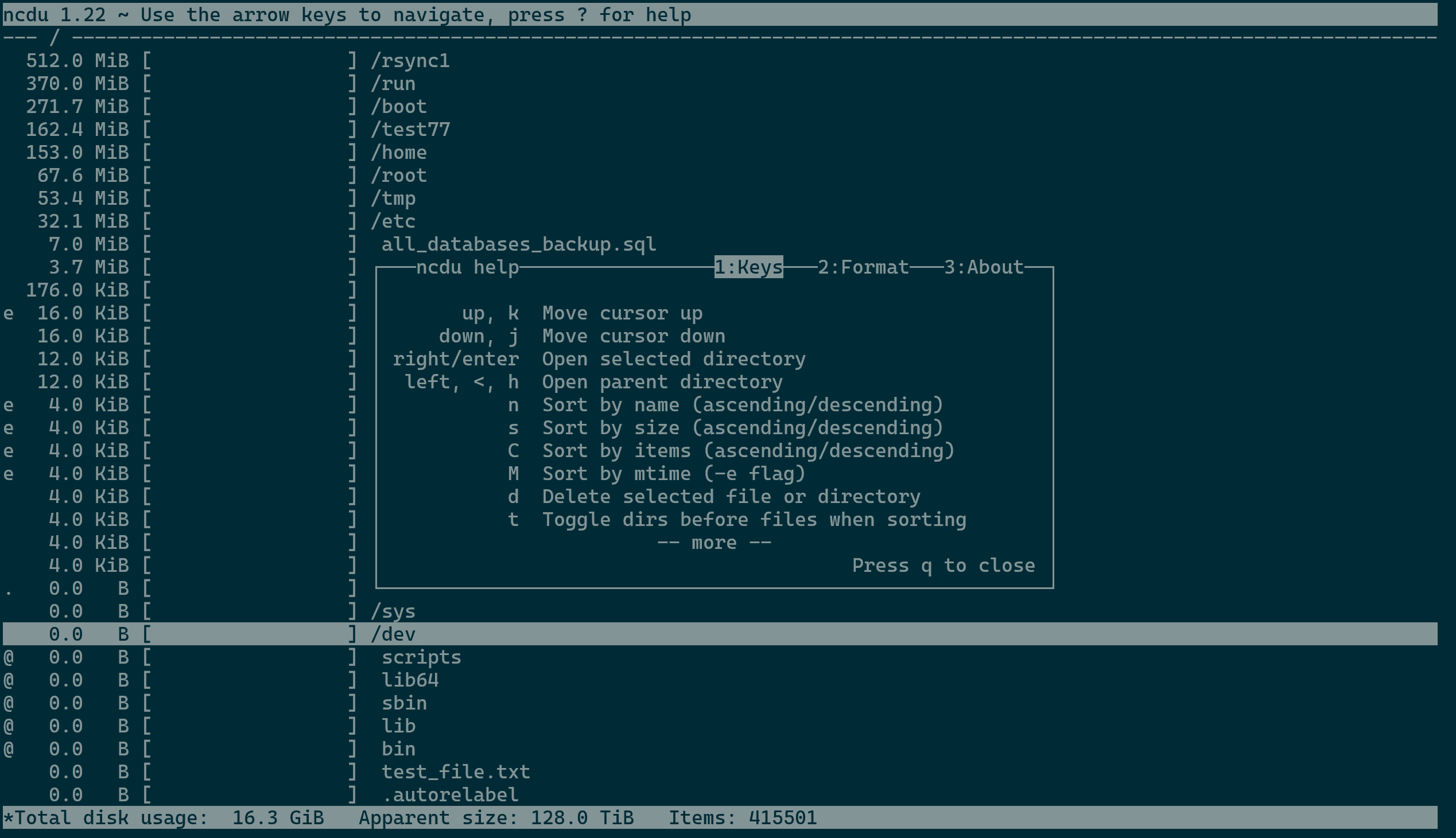
ncdu Screen
— Written by Pascal Suissa
