What is SMTP?
SMTP serves as the backbone for mail delivery within Windows Server environments, primarily functioning as a relay for internal applications and automated scripts. It acts as a local bridge, accepting outgoing messages and forwarding them to a more robust provider like Microsoft 365 or a corporate Exchange server. Because it relies on legacy IIS components, it remains a specialized tool used mostly for ensuring that legacy hardware, like scanners or monitoring tools, can communicate effectively over modern networks.
Installation of SMTP Feature in Windows Server
If you do not have SMTP feature installed in your Windows server, proceed to install it as per the steps below.
- Within “Server Manager”, press on “Manage” > “Add Roles and Features”.
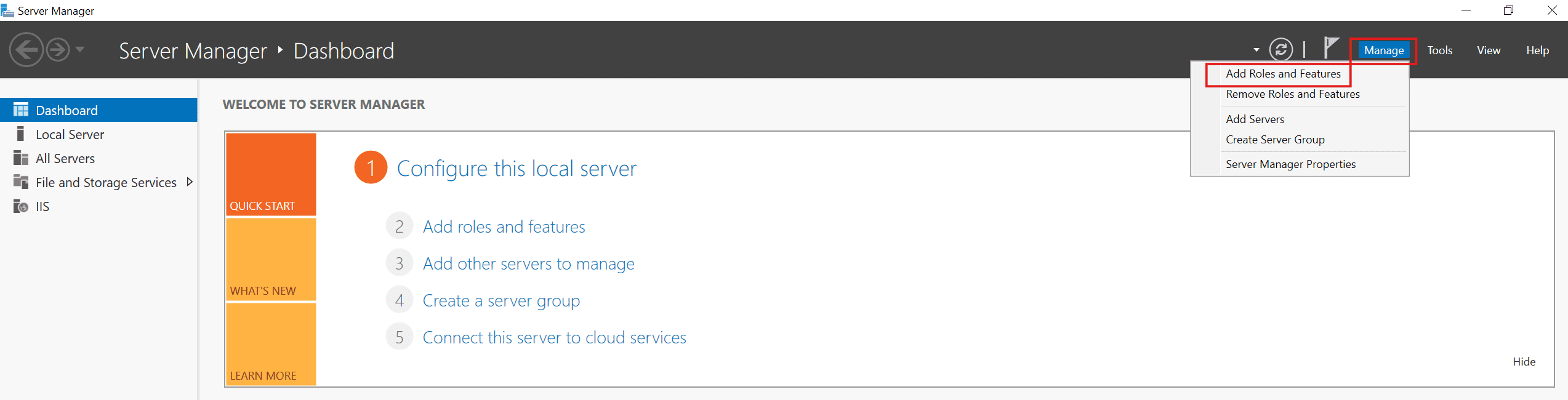
Adding Roles & Features - Within “Installation Type” Select the “Role-Based” option.
- Select the server you have from the server pool.
- Proceed as is within the “Server Roles” section without making any changes.
- Within the “Features” section, select “SMTP Server”. Add the other items it requires as dependencies.
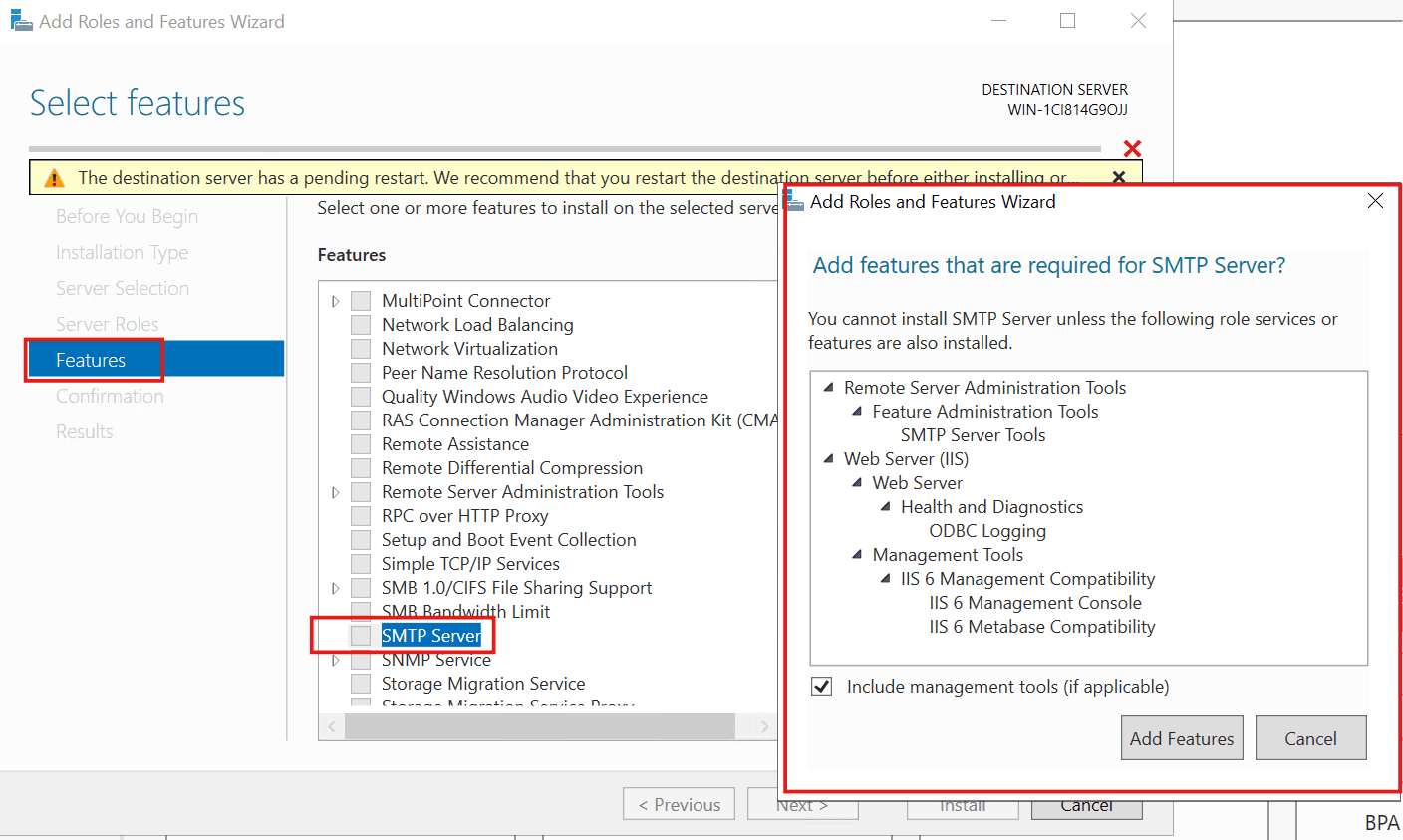
Adding SMTP Server - In the “Confirmation” section, proceed to press Install and allow the unit to reboot itself at the end of the installation.
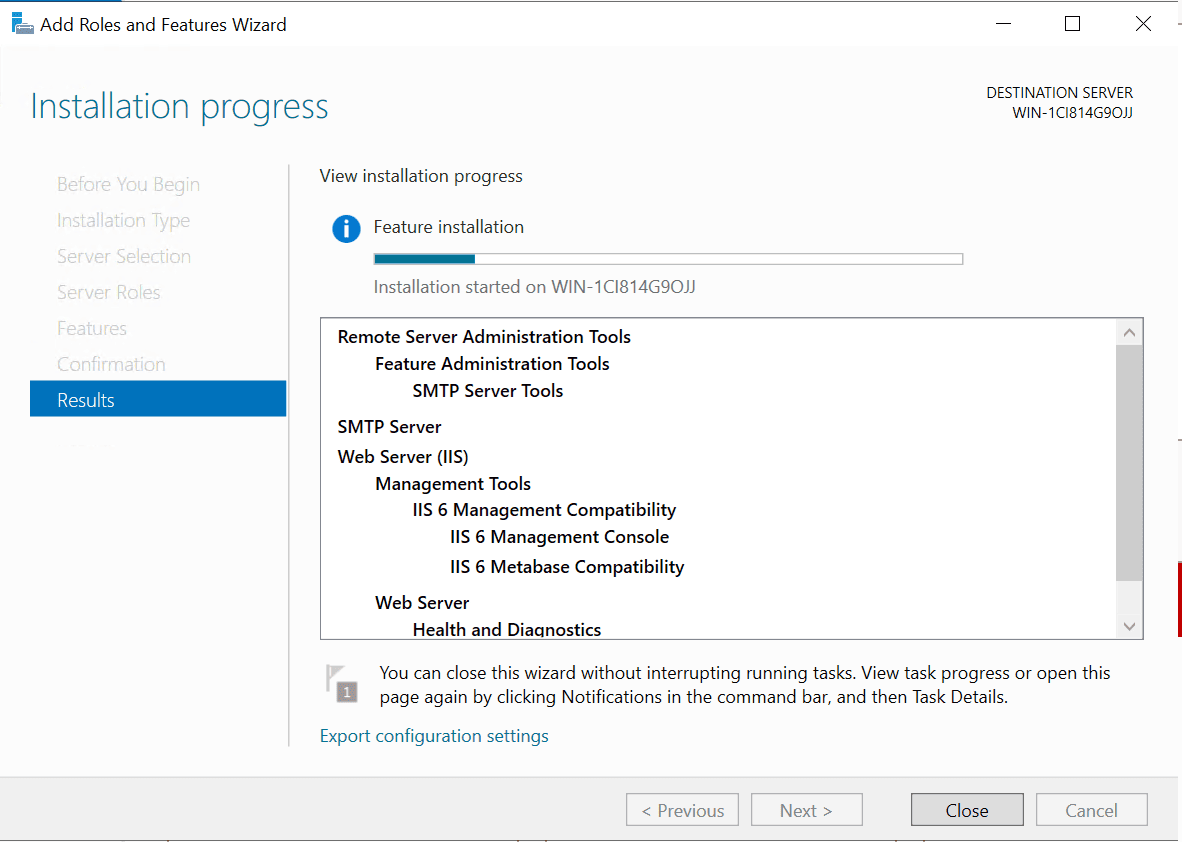
Feature Installation - Proceed to reboot the unit to complete installation.
Starting or Stopping SMTP Service in Windows Server
Starting or stopping your SMTP service on a computer running a Windows OS can be done in one of several ways.
Using the Windows Interface
To start or stop SMTP using the Windows interface, follow these steps:
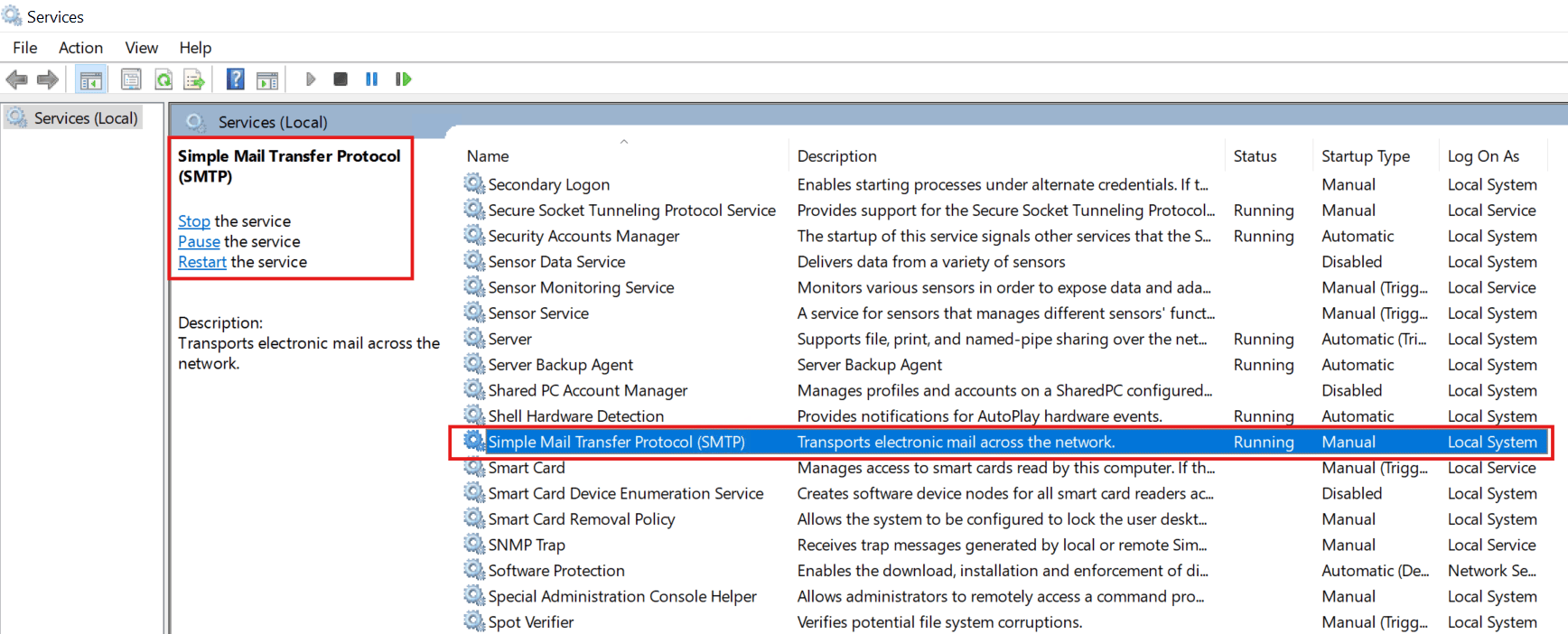
- Open Services. This can be done from the Start menu -> Control Panel -> Administrative Tools -> Services.
- You can also search for “services.msc” in the search bar for a faster path.
- In the details pane, locate the Simple Mail Transfer Protocol (SMTP) service and you will be able to start, stop, restart the service as necessary.
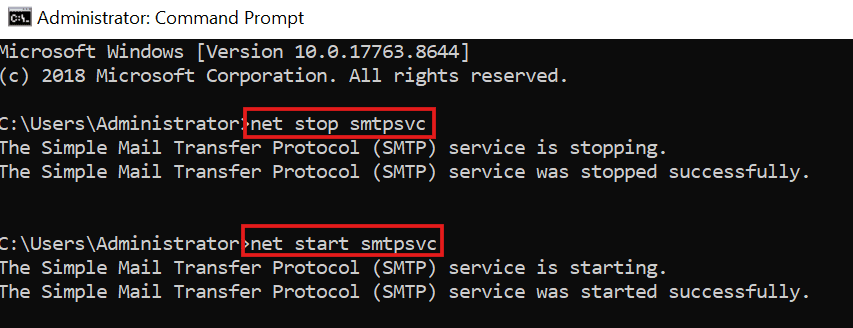
Using the Command Line
To start or stop SMTP using the command line, follow these steps:
- Open a Command Prompt. This can be done from the Start menu -> All Programs -> Accessories -> Command Prompt.
- You can also search for “Command Prompt” in the search bar for a faster path.
- Within the Command Prompt, enter the command
net {start|stop} smtpsvc.
— Written by Pascal Suissa
