In the world of web hosting and server management, uptime is everything. When a site feels sluggish or a service won’t connect, the ping command is usually the first line of defense. It’s the simplest way to verify that your Hivelocity server is reachable over the global network and to measure the latency between your location and your data center.
If you are new to the Linux terminal, you might notice one major difference from the Windows environment: a Linux ping never sleeps. It will continue to poll your server indefinitely, which can be a bit startling if you aren’t sure how to regain control of your command line.
Whether you’re testing a new Linux deployment, troubleshooting an Ubuntu web server, or checking for packet loss during a migration, knowing how to precisely start and stop these tests is essential. In this guide, we’ll show you how to manage the ping command.
What is Ping?
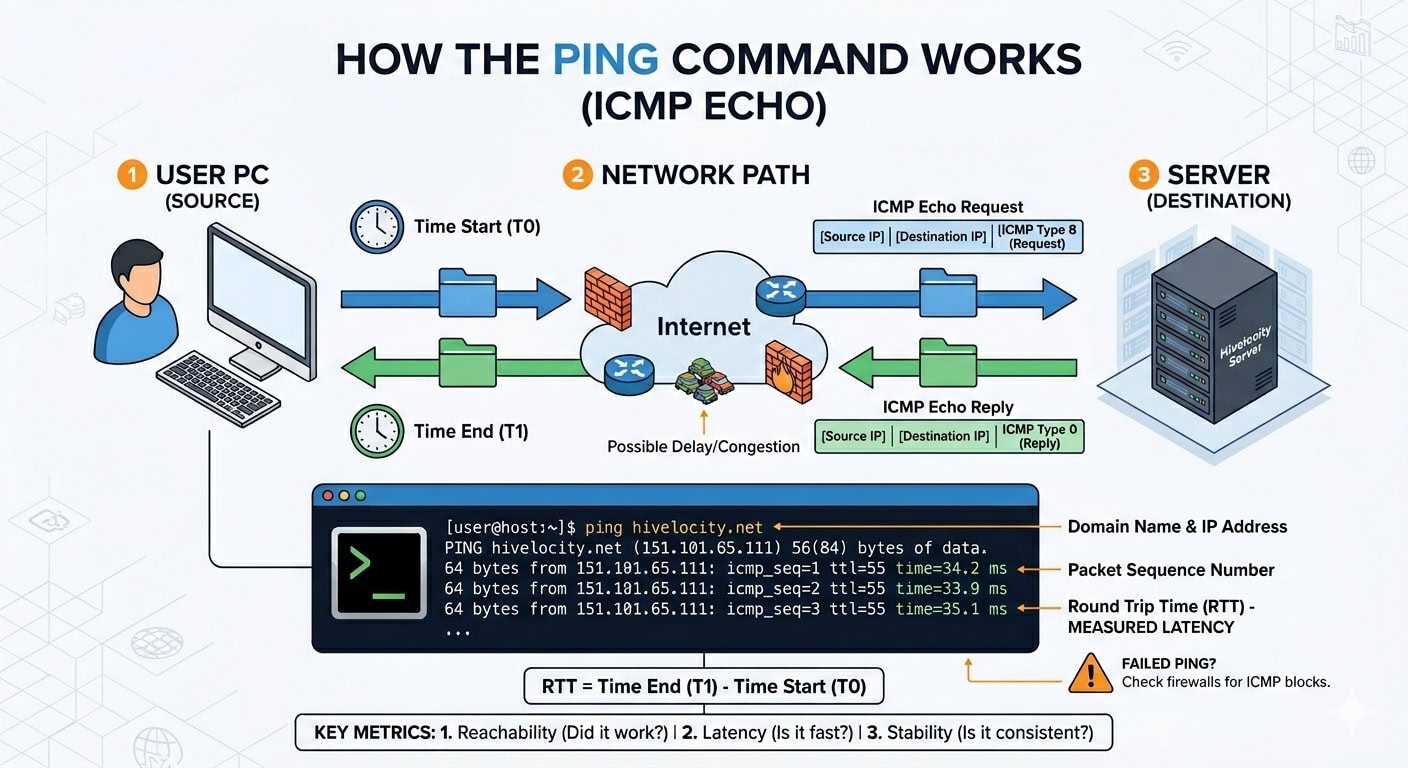
At its core, Ping is a networking utility used to test the reachability of a host (like your Hivelocity server) on an Internet Protocol (IP) network. The name comes from sonar terminology, referencing the sound pulse sent out to detect underwater objects.
In technical terms, Ping operates using the ICMP (Internet Control Message Protocol). When you run the command, your computer sends an Echo Request packet to the server’s IP address. If the server is online and configured to respond, it sends back an Echo Reply packet.
It is important to note that a failed ping doesn’t always mean a server is down. Many high-security environments, including some default Hivelocity configurations, use firewalls (like iptables or ufw) to block ICMP traffic. This is a common security practice to make a server “invisible” to automated network scanners.
Understanding the Ping Output (The Stats)
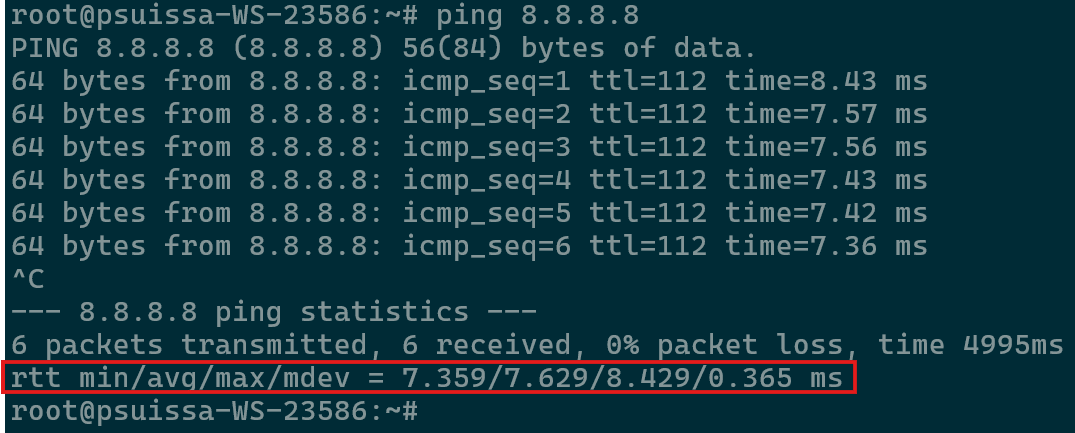
Once you stop a ping session using Ctrl + C, Linux provides a concise summary of the connection’s performance. For a sysadmin managing a Hivelocity server, these numbers are far more than just filler, they are a health report of your network route.
The “RTT” (Round Trip Time) Line
The most critical line usually looks like this: rtt min/avg/max/mdev = 34.123/35.456/42.789/1.211 ms
- Min (Minimum): The fastest time a packet made the round trip. This represents the absolute best-case scenario for your current connection.
- Avg (Average): This is your standard latency. For most web applications, you want this number to remain consistent. If you are hosted at Hivelocity and pinging from the same region, you should expect very low, stable averages.
- Max (Maximum): The slowest packet in the batch. A single high max value might just be a temporary blip, but if it is significantly higher than the average, it indicates intermittent lag.
- Mdev (Mean Deviation): This is the most important metric for stability. Mdev measures how much the latency varies from the average.
- Low mdev: Your connection is stable and predictable (ideal for VOIP, gaming, or database replication).
- High mdev: Your connection is jittery. Even if your average latency is low, a high mdev means some packets are taking much longer than others, which can cause apps to stutter or time out.
How to Run and Control the Ping Command in Linux
Starting a ping test is straightforward, but understanding the input and output is key to effective server management. To test the connection between your local environment and an external system, such as your Hivelocity server, follow these three steps:
Identify Your Target
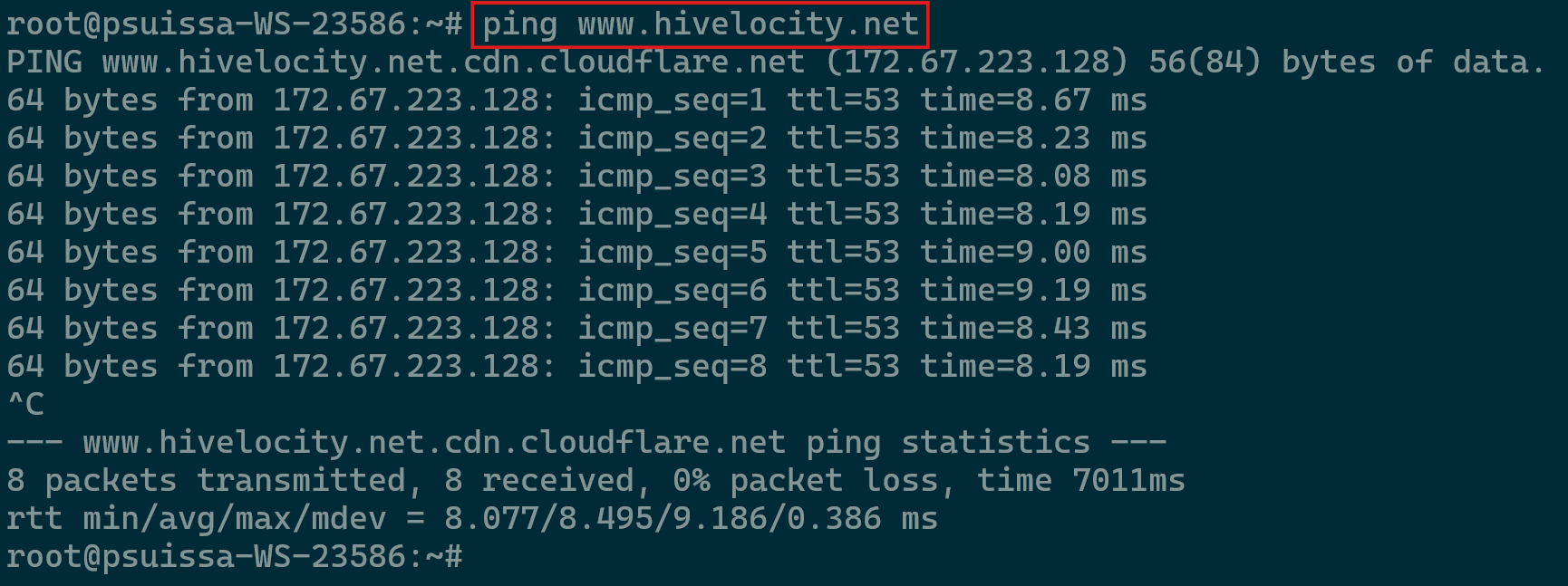
Before running the command, you need the destination’s address. You can use either a Domain Name (URL) or a Static IP Address. For this example, we will use our own domain to test reachability using the domain name (URL) of www.hivelocity.net.
Executing the Ping Command
Open your terminal and type ping followed by a space and your target address such as below. Once you hit Enter, your system begins sending ICMP Echo Request packets. Unlike other operating systems, Linux will continue to send these packets once per second until you manually intervene using the Ctrl+C key combo.
Review the Real-Time Results
As soon as the command starts, you will see a continuous stream of data lines appearing in your terminal. Each line represents one successful “round-trip” of data.
- Linux automatically resolves the URL to its numerical IP (In our example,
172.67.223.128), confirming that your DNS settings are working. - icmp_seq shows the packet number. If the numbers skip (jumping from 1 to 3), it means a packet was lost.
- Time (Latency) at the far right will show the time measured in milliseconds (ms).
Generally, anything under 20ms is considered excellent (local/datacenter speeds), while 20ms–100ms is standard for web browsing. If you see numbers consistently above 150ms, you may experience noticeable lag in server applications.
