Introduction
The /tmp partition in cPanel & WHM plays a critical role in server health by hosting temporary files, active session data, and database query caches. When this partition runs out of space, essential services like MySQL, Apache, and WHM can fail or crash. Expanding its size resolves these storage bottlenecks, but the exact method depends on your installed software version.
- cPanel & WHM version 130 and newer: Adjust the partition size directly through the WHM user interface under the System tab, then reboot the server to apply the changes.
- cPanel & WHM version 128 and earlier: Increase the size manually via the command line (CLI) by modifying and executing the /scripts/securetmp script.
What is the /tmp Partition in A cPanel Environment?
The /tmp partition serves as a temporary workspace where the Linux operating system and web applications store short-lived data required for real-time processing. In a cPanel & WHM environment, core services like MySQL, Apache, PHP, and WHM itself rely heavily on this directory to manage user sessions, process file uploads, and execute database queries.
To protect the server, cPanel isolates /tmp onto its own dedicated filesystem (typically mounted using a loopback device like /usr/tmpDSK). This isolation allows administrators to enforce strict mount options, such as noexec to block execution of unauthorized scripts and nosuid to prevent privilege escalation without restricting the rest of the server.
Constraining temporary files to a fixed partition prevents sudden spikes in temporary data from consuming all free space on the primary root filesystem. This safeguards the host system against unexpected crashes. However, if /tmp fills up completely, applications can no longer write essential session or query data causing database errors, broken websites, and locked control panels.
Prerequisites & Safety Precautions
- It is recommended that this procedure only be performed by an advanced system administrator and only during a scheduled dedicated time since it requires temporarily stopping the services that write to
/tmp. - Versions 130 and newer require you to reboot the server for the changes to take effect.
- Changing the settings will also delete the contents of your /tmp partition so be advised.
- Versions 128 and earlier procedure only works on servers on which cPanel has generated /tmp. cPanel-generated /tmp filesystems have /dev/loop in their names, for example:
[root@server]# df -h /tmp
Filesystem Size Used Avail Use% Mounted on
/dev/loop0 477M 2.4M 449M 1% /tmp- If your server’s current
/tmpfilesystem does not include/dev/loopin its name, the server’s operating system or the Hivelocity team created it outside of cPanel. In this case, please contact our Support team to increase your/tmppartition size.
Method 1: cPanel & WHM Version 130 and Newer (WHM Interface)
This procedure is straight forward and involves navigating WHM to reach to the specific setting we wish to modify.
- Log into your WHM.
- Search for “tweak” in the search bar to find “Tweak Settings”.
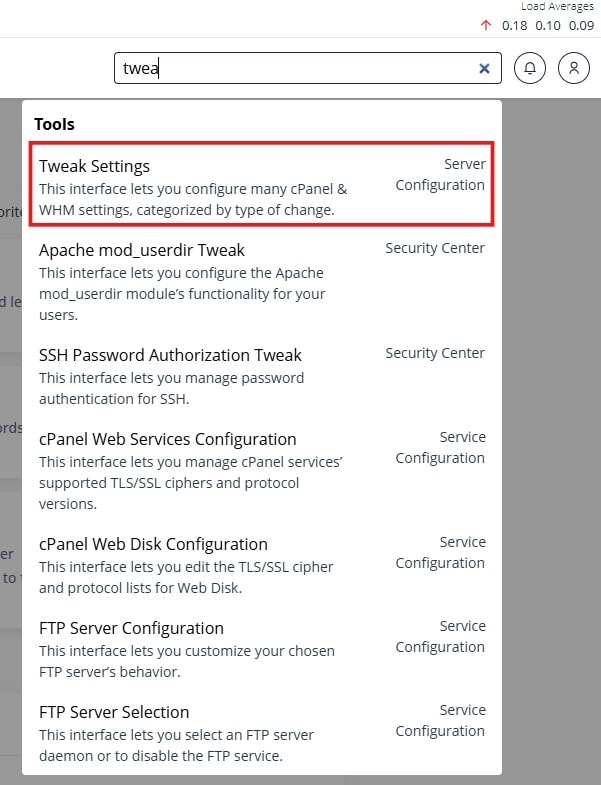
Tweak Setting in WHM - Locate the “System” tab and select it.

System Tab within Tweak Settings - Locate the setting “Size, in MB, for the /tmp partition secured by securetmp (Minimum: 512; Maximum: 10,240)”.
- This setting is only used if securetmp is enabled. Setting to default (undef) means the script algorithmically determines the size of the /tmp partition. Setting a specific value will cause the script to use that size instead. A system reboot is required for this setting to take effect; this will also erase the contents of the /tmp partition.
- In my case as below, my /tmp partition is only 1.6G as shown by running the df -h command.
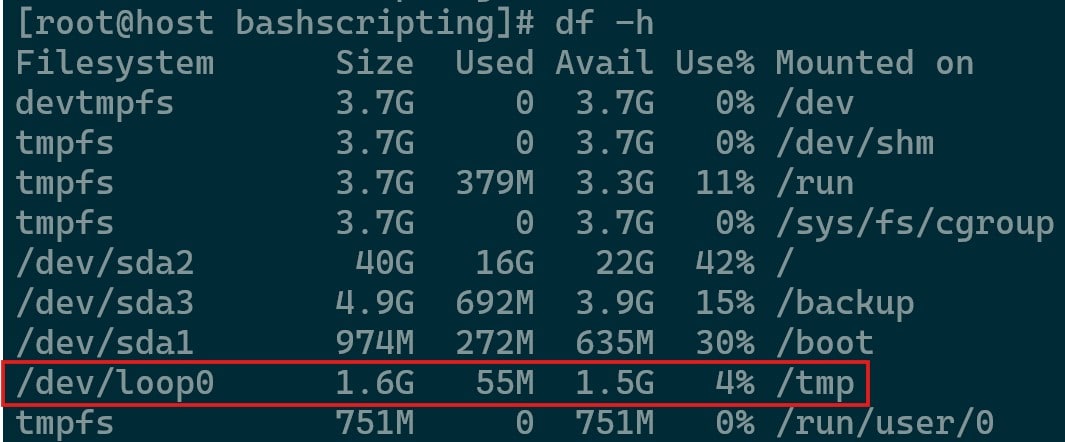
/tmp Partition
- Change the value to a higher value that you’d like to use (Ensure there is enough free space in root to allow it) and press the Save button at the bottom of the page.
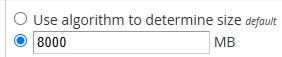
Increasing tmp Size 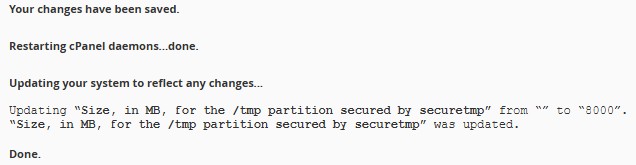
Update Complete - Now reboot your server and check the new value by running df -h once more.
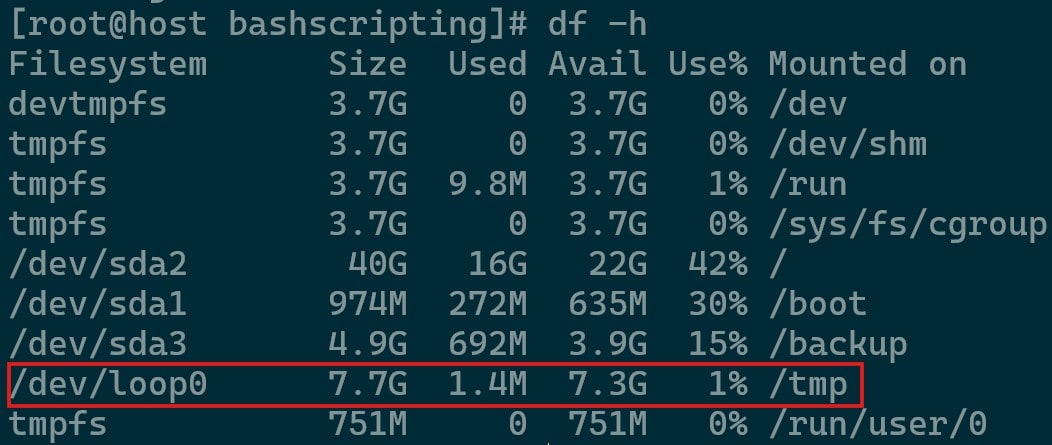
Updated tmp Partition
Method 2: cPanel & WHM Version 128 and Earlier (Command Line / CLI)
Note that this procedure does not work on servers running in Virtuozzo or VZ environments
The work involved with version 128 and earlier can change from time to time, because of this fact, it is advisable to follow up on the specific procedure listed in cPanel’s Knowledge Base for this specific case under the “cPanel & WHM version 128 and earlier” tab.
If you require any further assistance, please do reach out to the Service Support team via phone at 888-869-4678, chatting with us via myV support portal, or creating a support ticket from within the portal’s Support section.
