Introduction
The pkgacct script is a vital command-line tool in cPanel & WHM used to package an entire user account into a compressed archive, typically formatted as a cpmove tarball. It bundles all critical account data, including website files, databases, email configurations, and DNS settings, making it indispensable for manual backups and server-to-server migrations. These archives can then be seamlessly unpacked and reinstated on any cPanel server using its companion restoration script, restorepkg. System administrators frequently rely on this pair of tools to safely back up individual users or move accounts when automated transfer tools are unavailable.
Why Use pkgacct for cPanel Backups?
While the cPanel web interface offers graphical backup tools, the /usr/local/cpanel/scripts/pkgacct command-line script is the industry standard for system administrators.
- The script creates a full, self-contained
cpmovearchive that includes website files (public_html), MySQL databases, email accounts, forwarders, SSL certificates, cron jobs, DNS records, and account configurations. - Web-based backups often fail or time out on large accounts due to PHP memory limits or execution timeouts. Running
pkgacctdirectly via SSH bypasses web server restrictions completely. - A command-line tool which can easily be integrated into custom Bash scripts or cron jobs for scheduled automated backups.
- The script produces the exact archive format required by WHM’s account restoration tools, making manual server-to-server migrations seamless and error-free.
How to Run pkgacct via SSH
To use pkgacct, you need root or sudo access to your server via SSH.
- Log in to your server via SSH as the root user.
- Execute the script for the target cPanel user,
/usr/local/cpanel/scripts/pkgacct account_name- If no destination directory is specified, the compressed backup archive will be saved in the
/homedirectory. - If you want to save the backup to a specific folder or a secondary mount point, you can add
/backup/manual_backups/after the account_name portion of the command.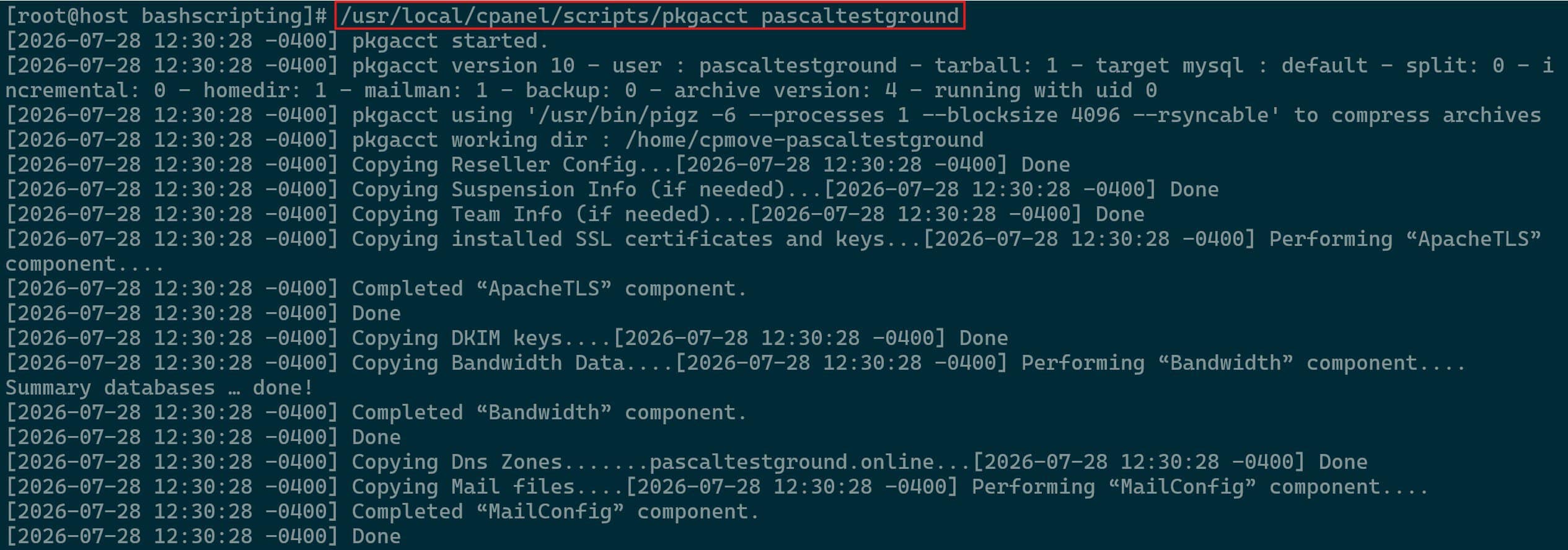
Packaging a cPanel Account
- If no destination directory is specified, the compressed backup archive will be saved in the
- Once the archive is complete, the output will share the location of the file along with a “pkgacct completed” message.
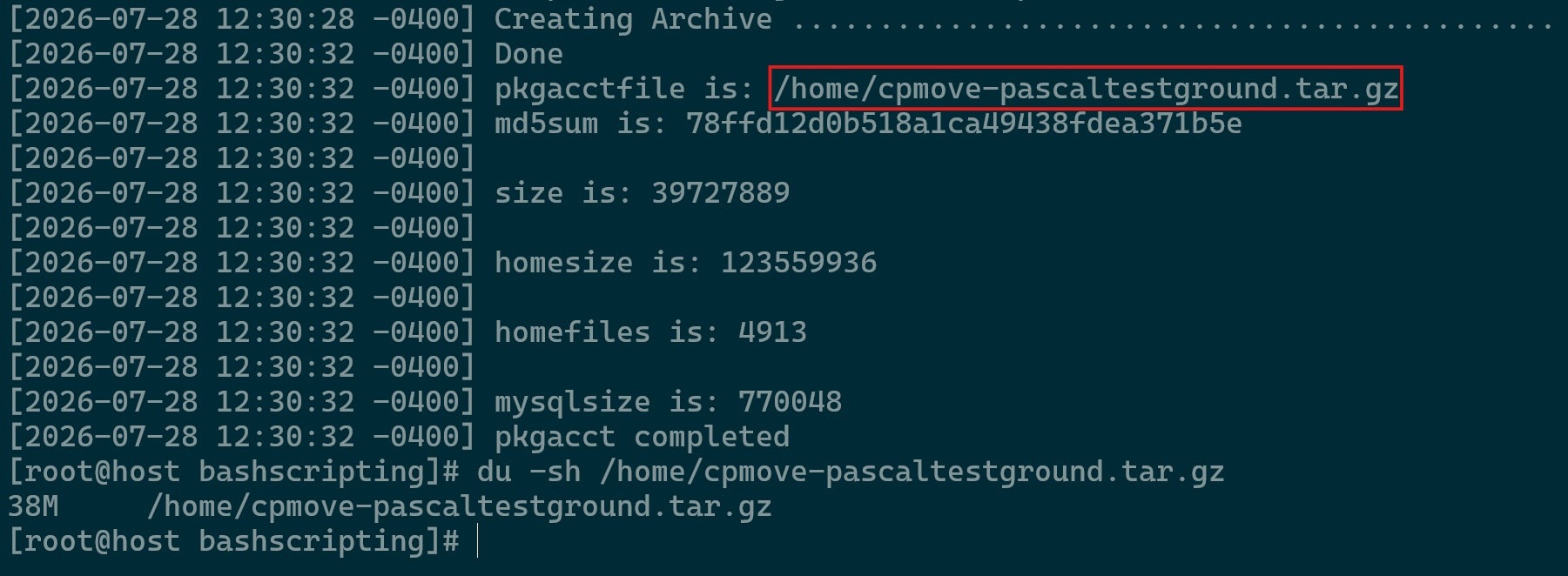
pkgacct Process Completed
Restoring the Account on a New Server
Once the tar.gz file is created, you can restore it on the target server using cPanel’s companion restoration script, restorepkg.
- Securely copy the archive from the source server to the destination server using
scporrsync. Place the archive file directly in the /home directory on the new server, or on the server you wish to restore the account in, whichever is applicable. - Run the restorepkg command followed by the cPanel path,
/usr/local/cpanel/scripts/restorepkg /home/cpmove-pascaltestground.tar.gz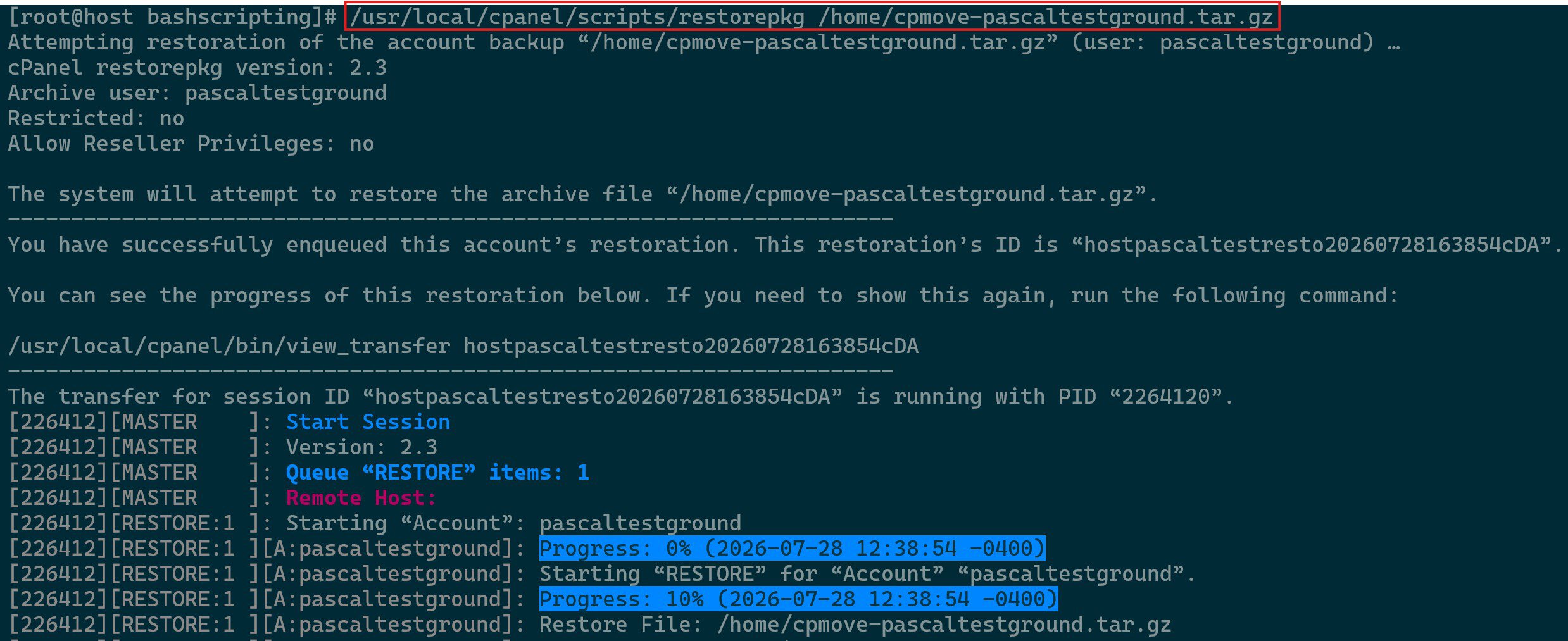
Restoring an Account Using restorepkg 
Completed Restoration of a Packaged Account - Log in to WHM on the new server, navigate to List Accounts, and verify that the user, disk usage, databases, and IP assignments match the original server setup.
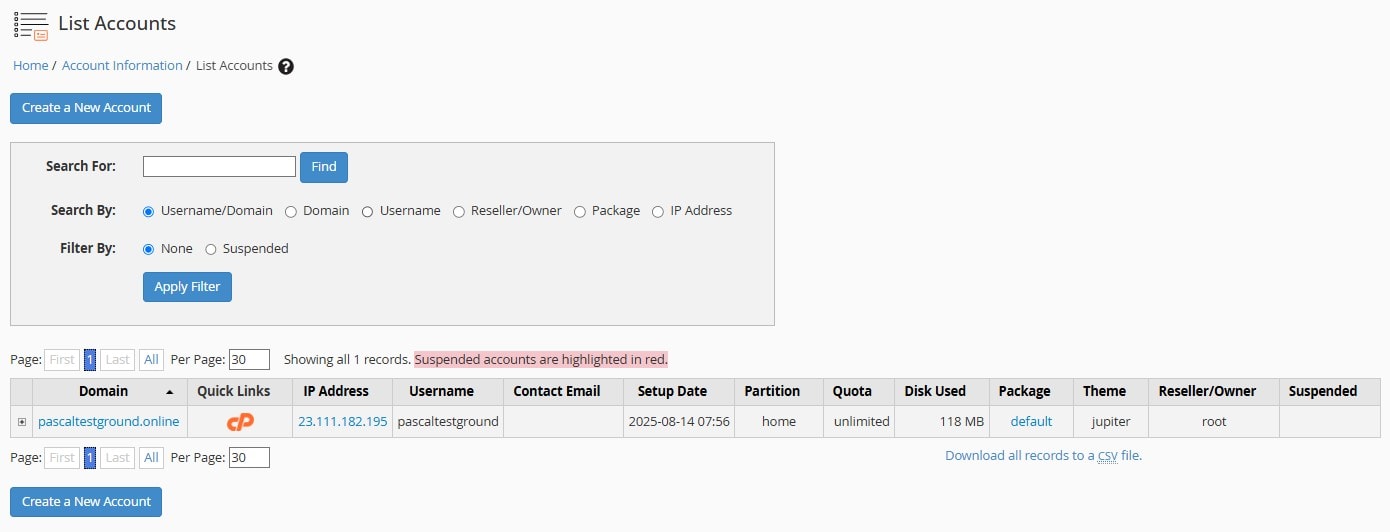
Account Visible within “List Account” in WHM
Best Practices for Smooth Account Transfers
To ensure data integrity and avoid downtime during account packaging and migrations, follow these key practices:
- Decrease the TTL (Time to Live) on your DNS records to 300 seconds (5 minutes) a day or two before the migration. This ensures rapid propagation when switching IP addresses.
- If migrating a live site, temporarily suspend the account or enable maintenance mode before running
pkgacct. This prevents users from making new database changes or uploading files while the backup is being created. - Packaging an account temporarily duplicates its data. Ensure the source and target partition (
/home) have at least twice the disk space of the account being packaged. - Check and repair MySQL databases prior to running
pkgacctto avoid corrupting tables during export. - After restoring via
restorepkg, verify that file ownership matches the user and group and that permissions are set correctly.
