Ever wonder where your hard drive space went? While a quick glance at your files is helpful it rarely reveals the full picture. Hidden data can quickly clutter your system so it’s important to stay on top of the situation. We have compiled the best methods for both point-and-click users and terminal users. Follow this guide to discover the total footprint of any folder across Windows, macOS, and Linux.
Windows
Method 1 – File Explorer
- Open File Explorer from your task bar or press the keys
Win + E. - Right-click your target folder and select Properties.
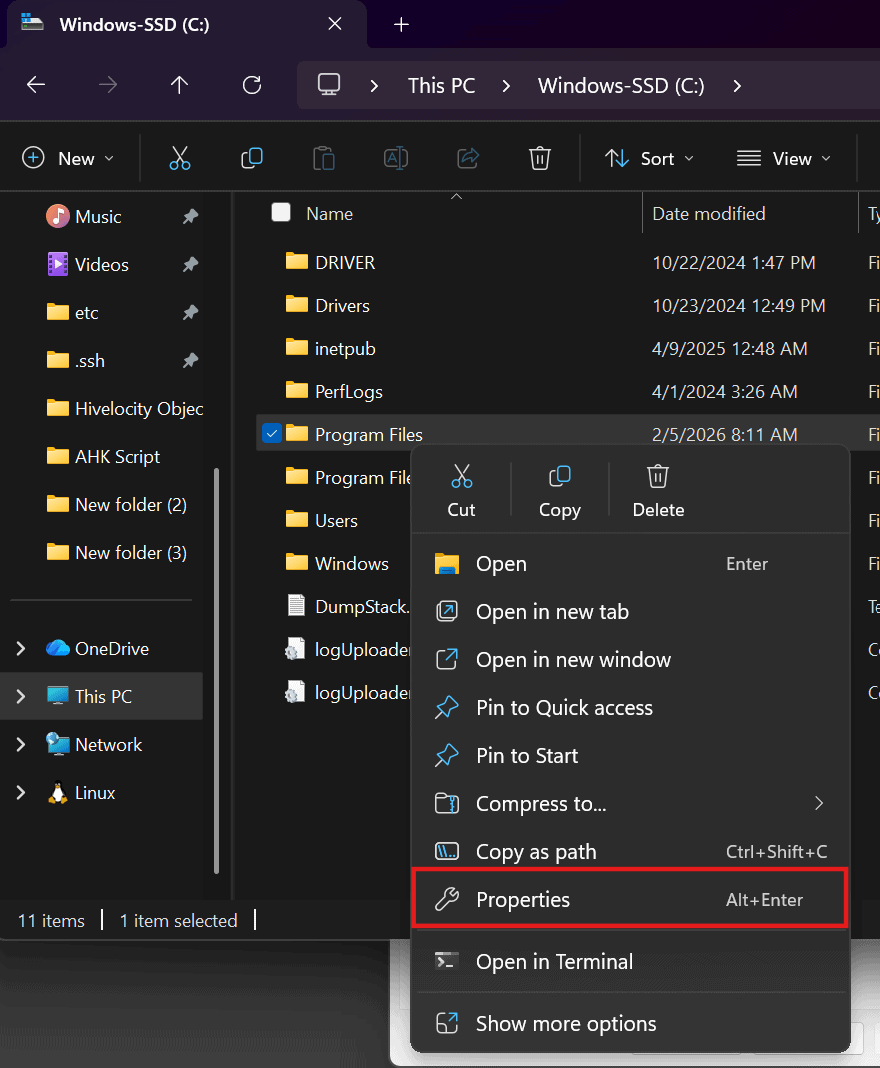
Folder Properties Menu - Under the General tab, look for Size and Size on disk.
- Size: The actual sum of the data.
- Size on disk: The actual physical space being occupied (this accounts for file system overhead and compression).
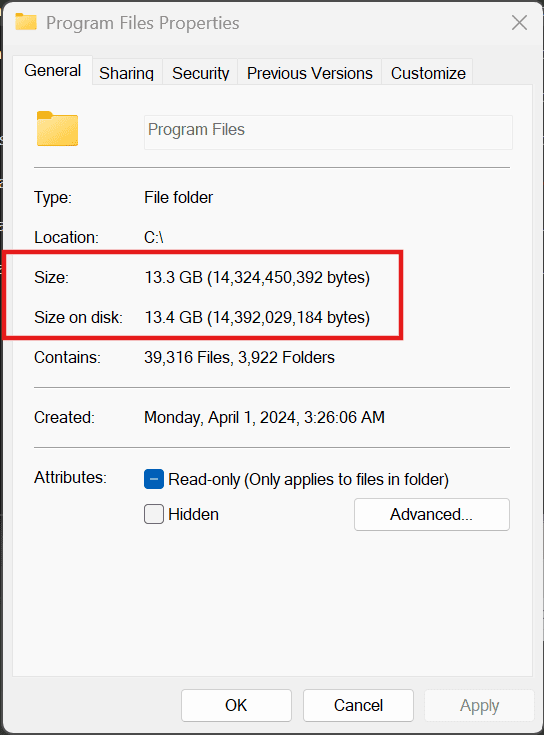
Size on Disk Details
Method 2 – Command Prompt
- Open the “Command Prompt” by searching it within the Windows’s Search Bar.
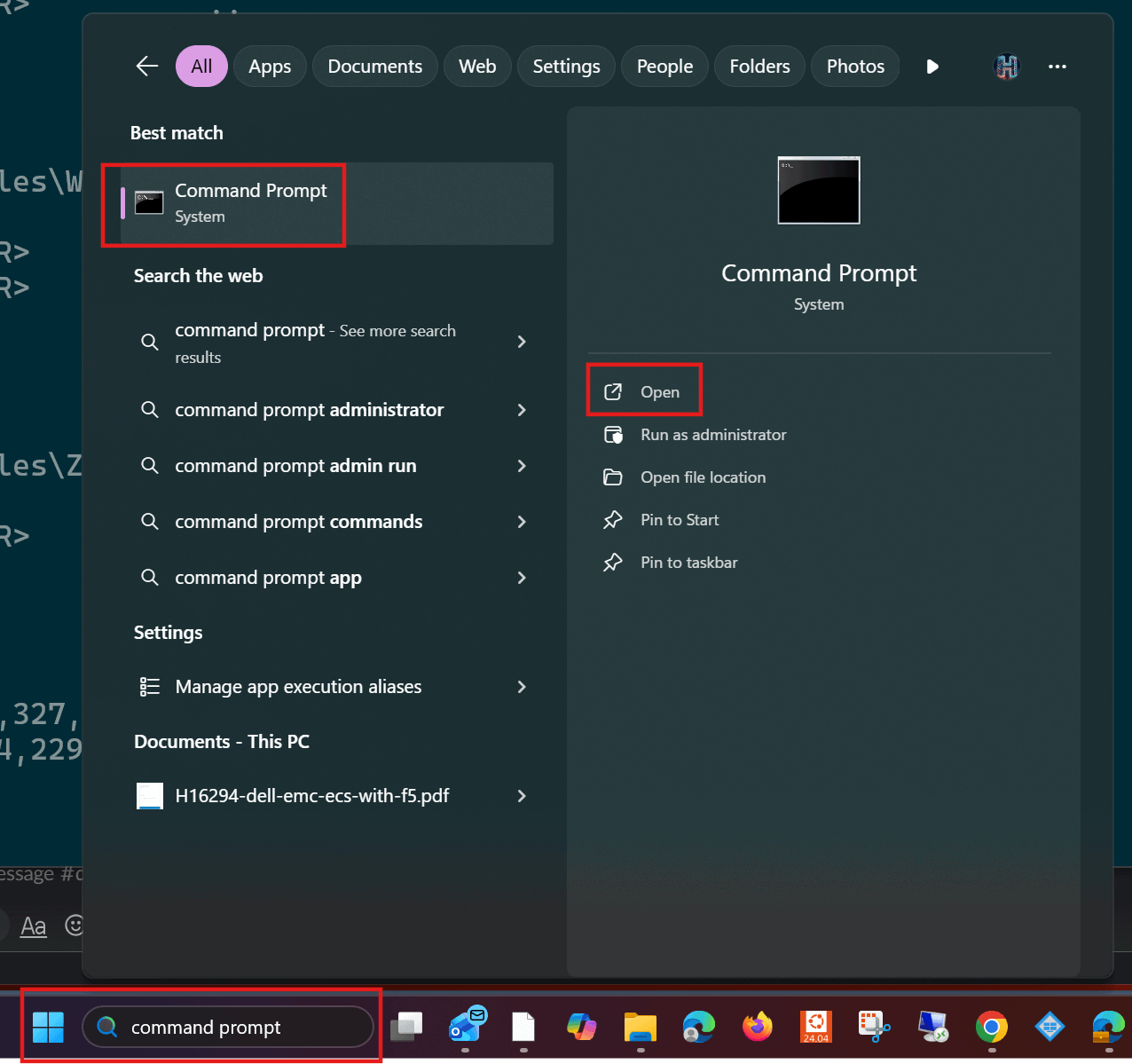
Command Prompt - Find the necessary path you need and use the command
dir /s "C:\Program Files”. In this example, the path “C:\Program Files” will be changed here to the path you require. - The command will scan all files in the folder and provide an output indicating the total files and size.

Total Files Listed & Size
Linux
Use the following command to get a human-readable total of a folder and its subfolders du -sh /path/to/folder. In this example /var/ was used. You can find more information in the du command manual pages.
sSummary (prevents a massive list of every single file).hHuman-readable (converts bytes to KB, MB, or GB).
Disk Usage
MacOS
Method 1 – The “Get Info” Inspector
- Select a folder in Finder.
- Press Command (⌘) + I once the item is selected.
- The Size will be displayed in the top right of the info panel.
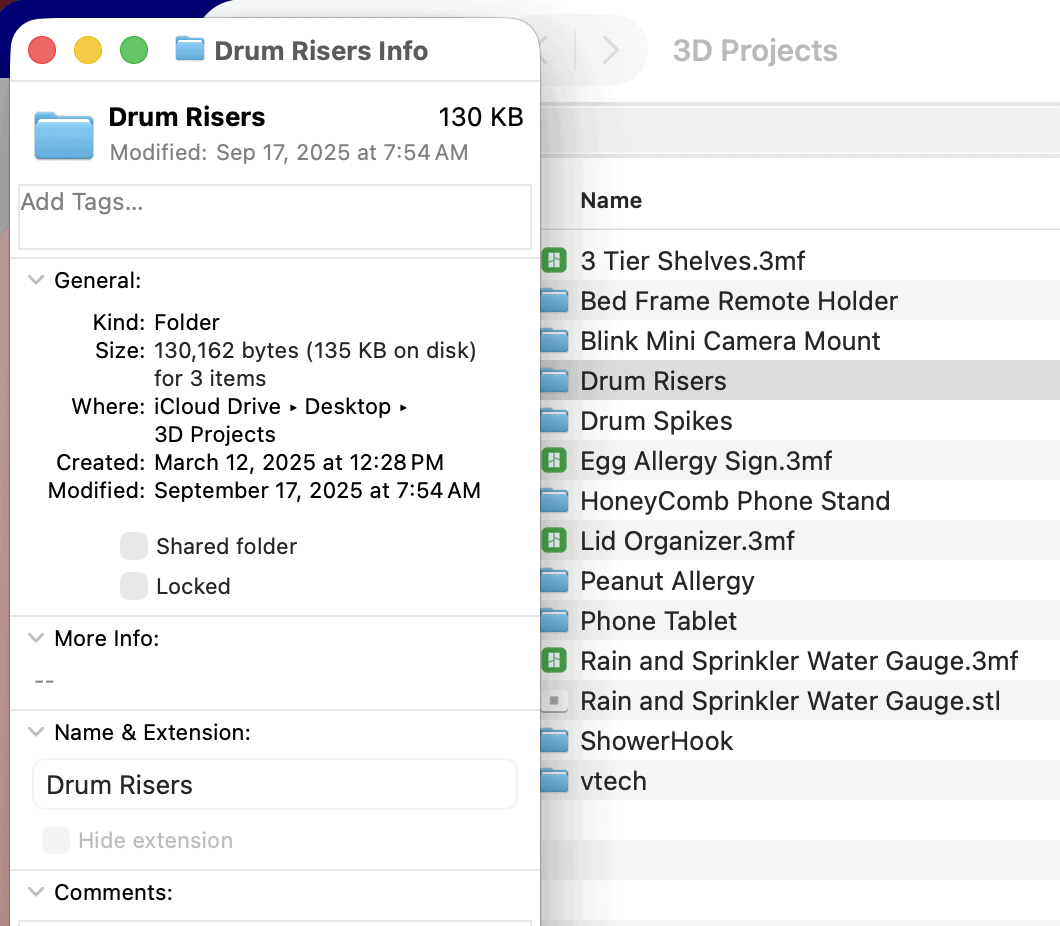
Folder Details
Method 2 – Finder Column View
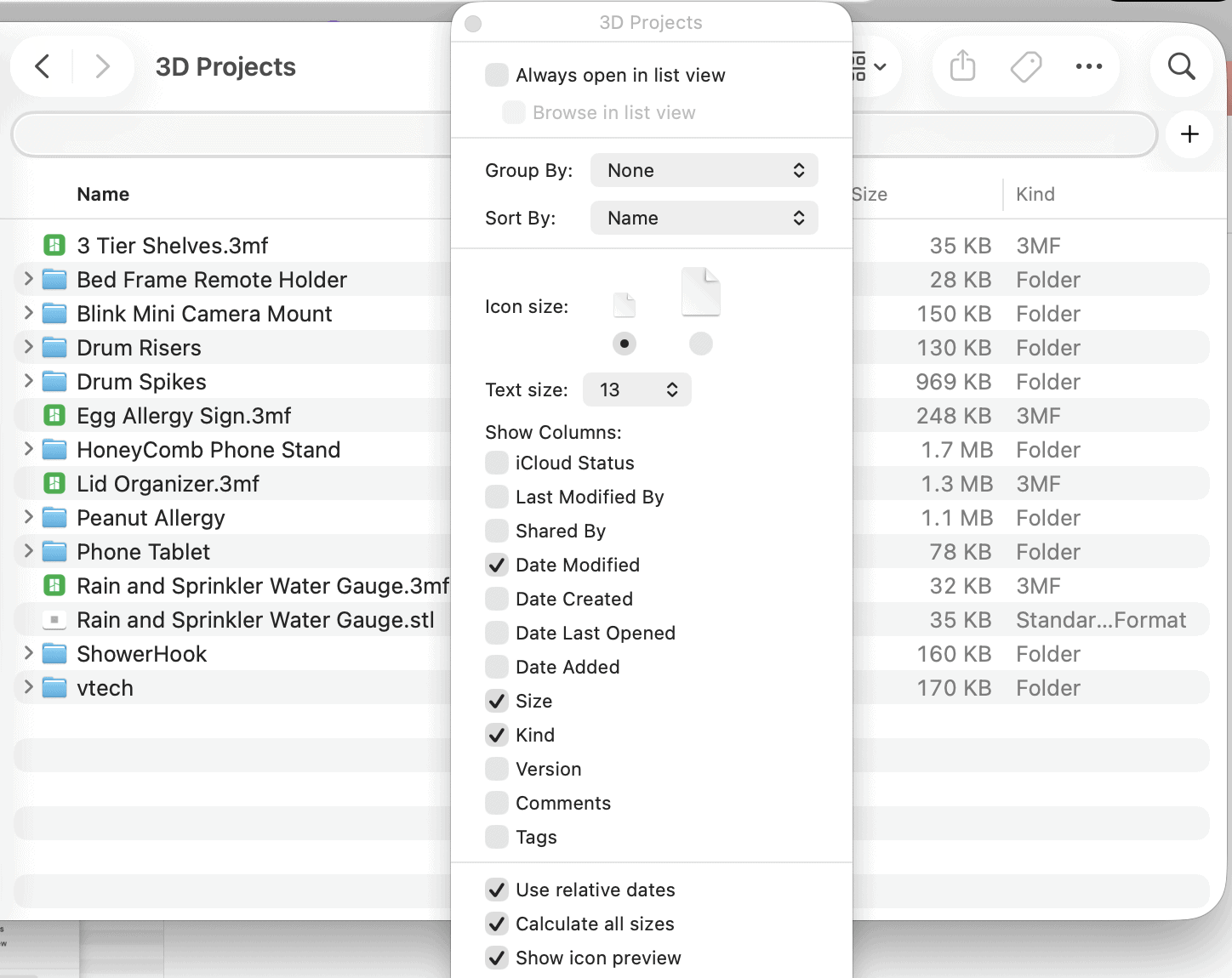
In addition to the manual check, if you want to see sizes automatically as you browse, you can simply press Command + J while inside a folder. From there, be sure to check the box for “Calculate all sizes.” Finder will now populate the “Size” column for folders as well as individual files, consequently giving you a real-time view of your storage usage.
— Written by Pascal Suissa
